The setup guide

Get set up.
Make time for yourself.

Complete the initial setup, then choose the limits that work for you. Already set up? Jump straight to the rules.

SETUP / 01

Enable accessibility

This lets the app identify the app in use and show a pause reminder when a limit applies.

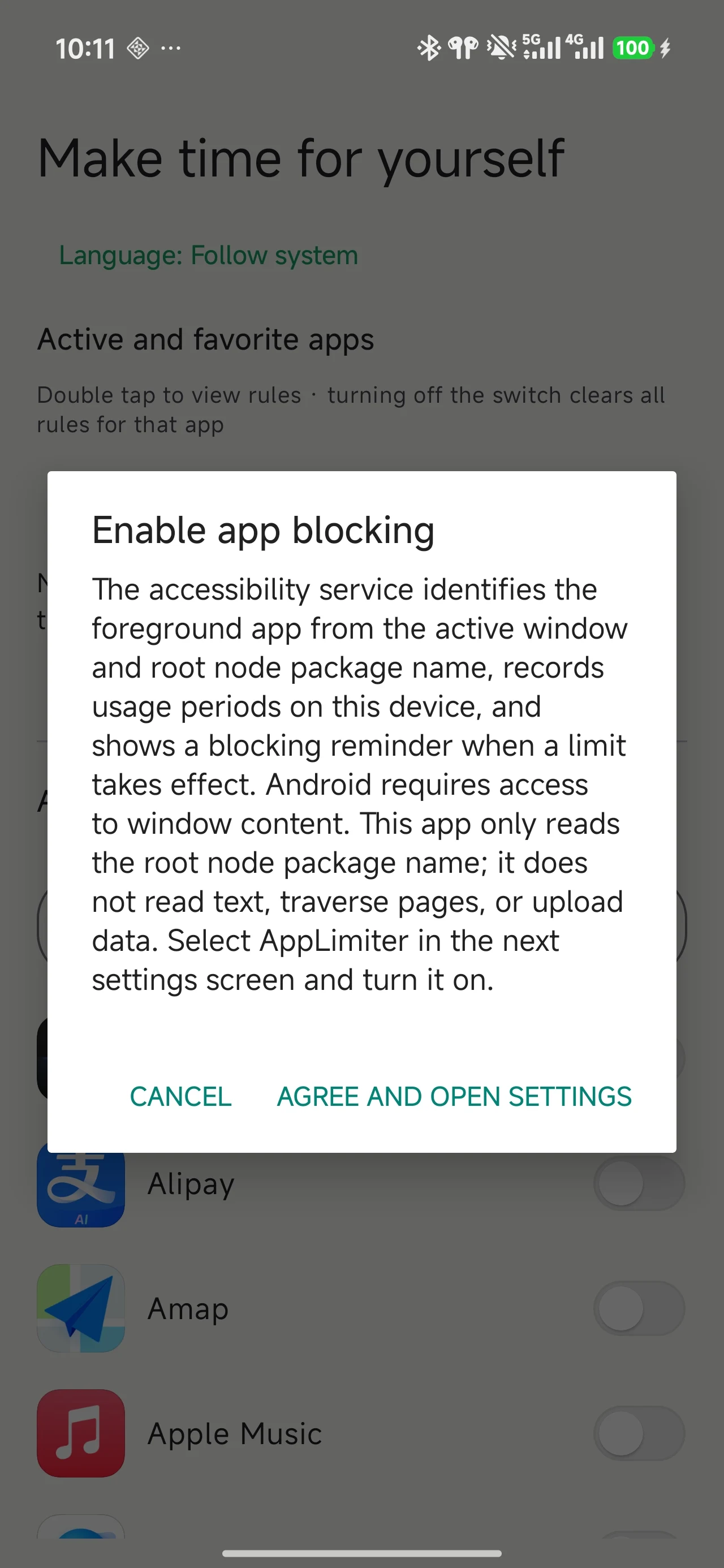
  1. Open the app and tap the accessibility prompt on the home screen.
  2. Read the explanation, then agree and continue to Settings.
  3. Follow your phone’s instructions to find AppLimiter, enable its accessibility service, then return to the app.

The app identifies apps by package name; it does not read page text. Setting names and locations vary by device.
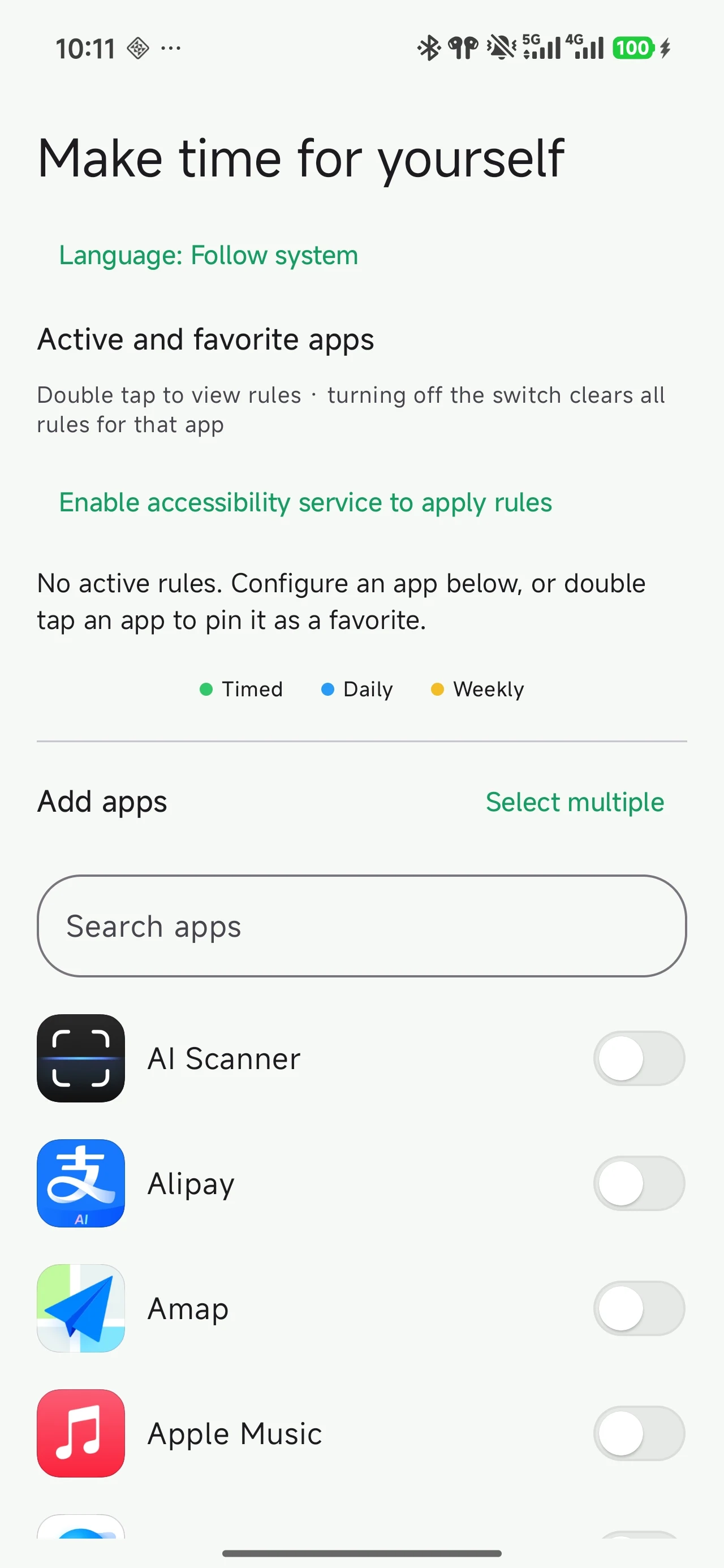
1. Tap the prompt on the home screen
1. Tap the prompt on the home screenView full screenshot ↗
2. Read the explanation and open Settings
2. Read the explanation and open SettingsView full screenshot ↗
SETUP / 02

Allow background activity

Help your rules keep working by preventing battery restrictions from interrupting monitoring.

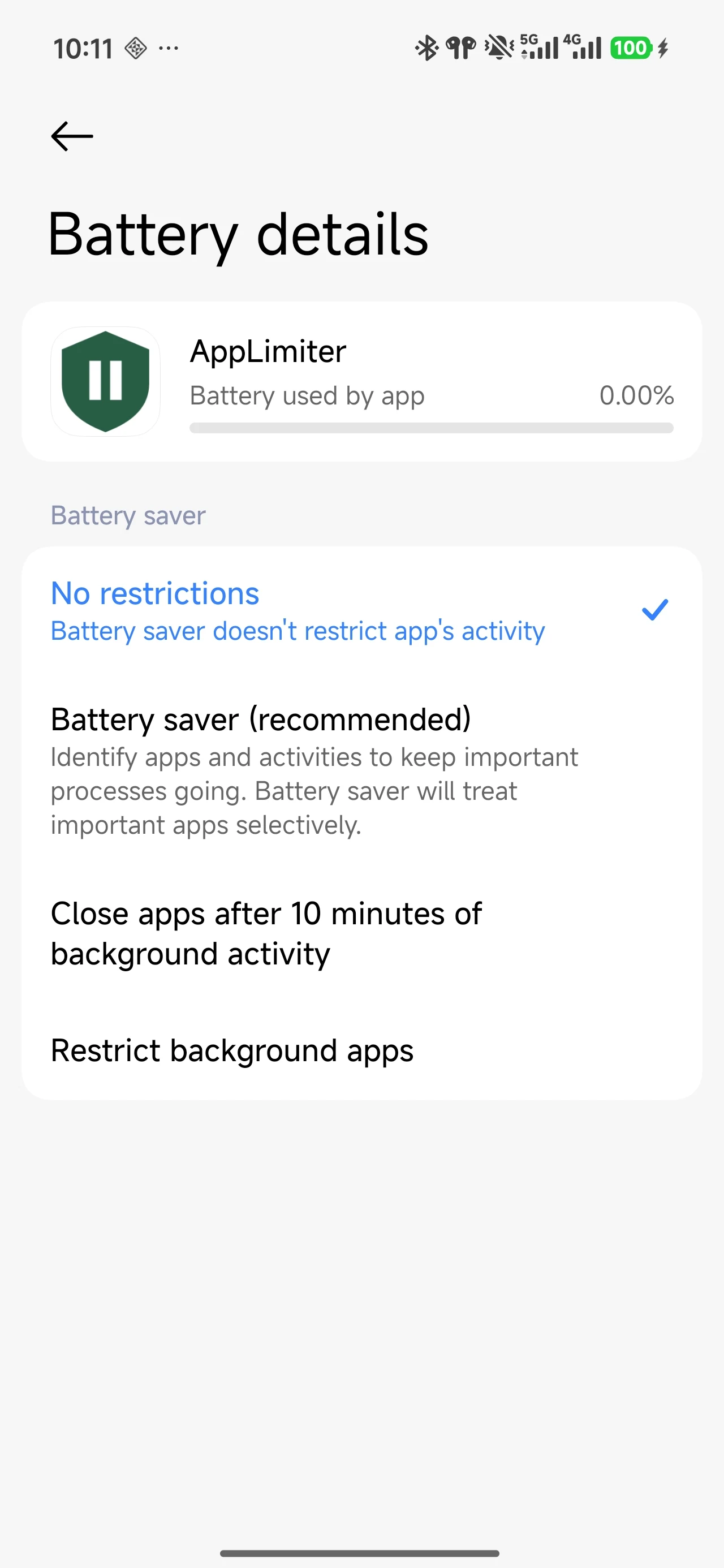
  1. In your phone’s Settings, find the battery or background activity settings for AppLimiter.
  2. Choose “Unrestricted”, or the equivalent option that allows background activity.
  3. Return to the app to continue setting up your allowances.

The screenshot is an example from one device. Menus and option names may differ on your phone.

Select the unrestricted battery option for AppLimiter
Select the unrestricted battery option for AppLimiterView full screenshot ↗
SETUP / 03

Grant usage access

Daily and weekly allowances need usage access to obtain app usage time.

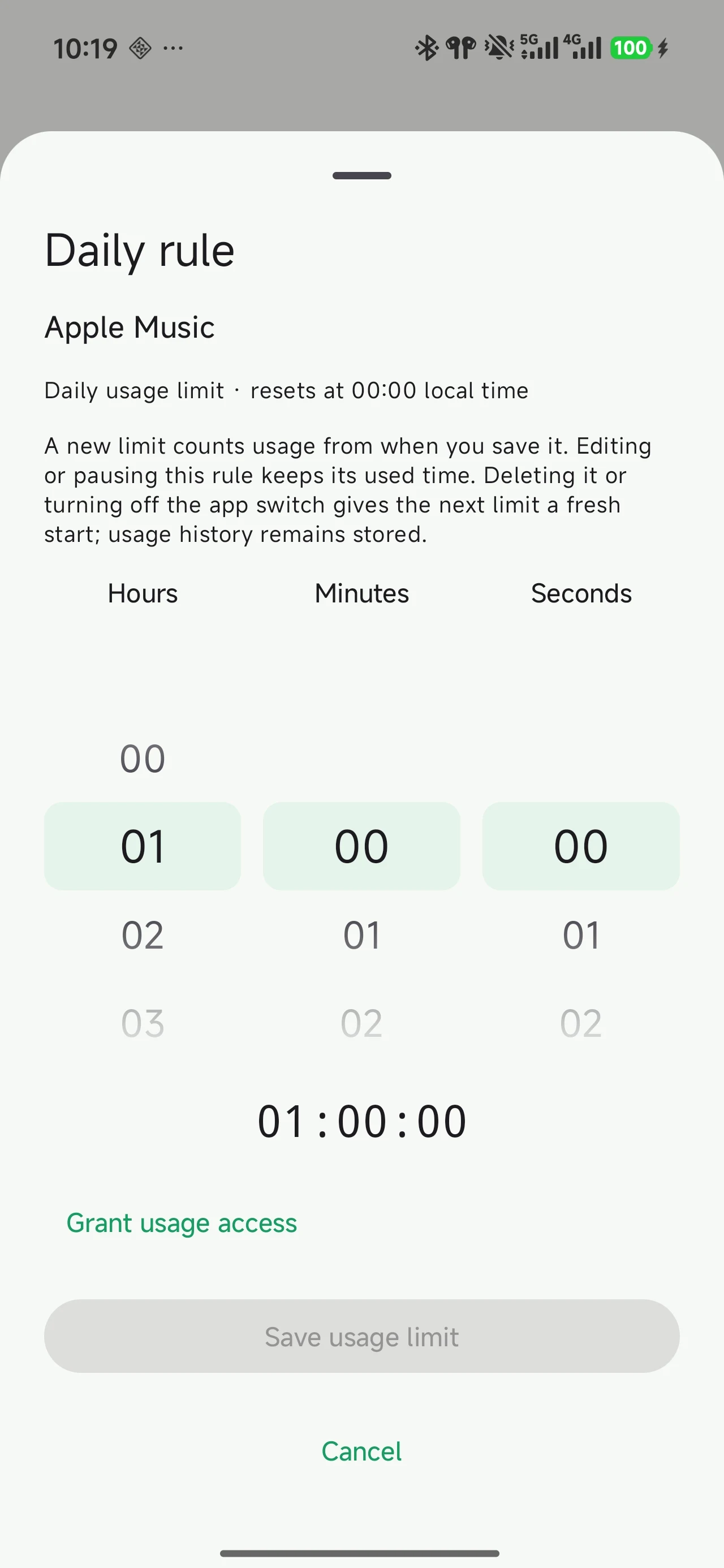
  1. Open a daily or weekly rule and tap the usage access prompt.
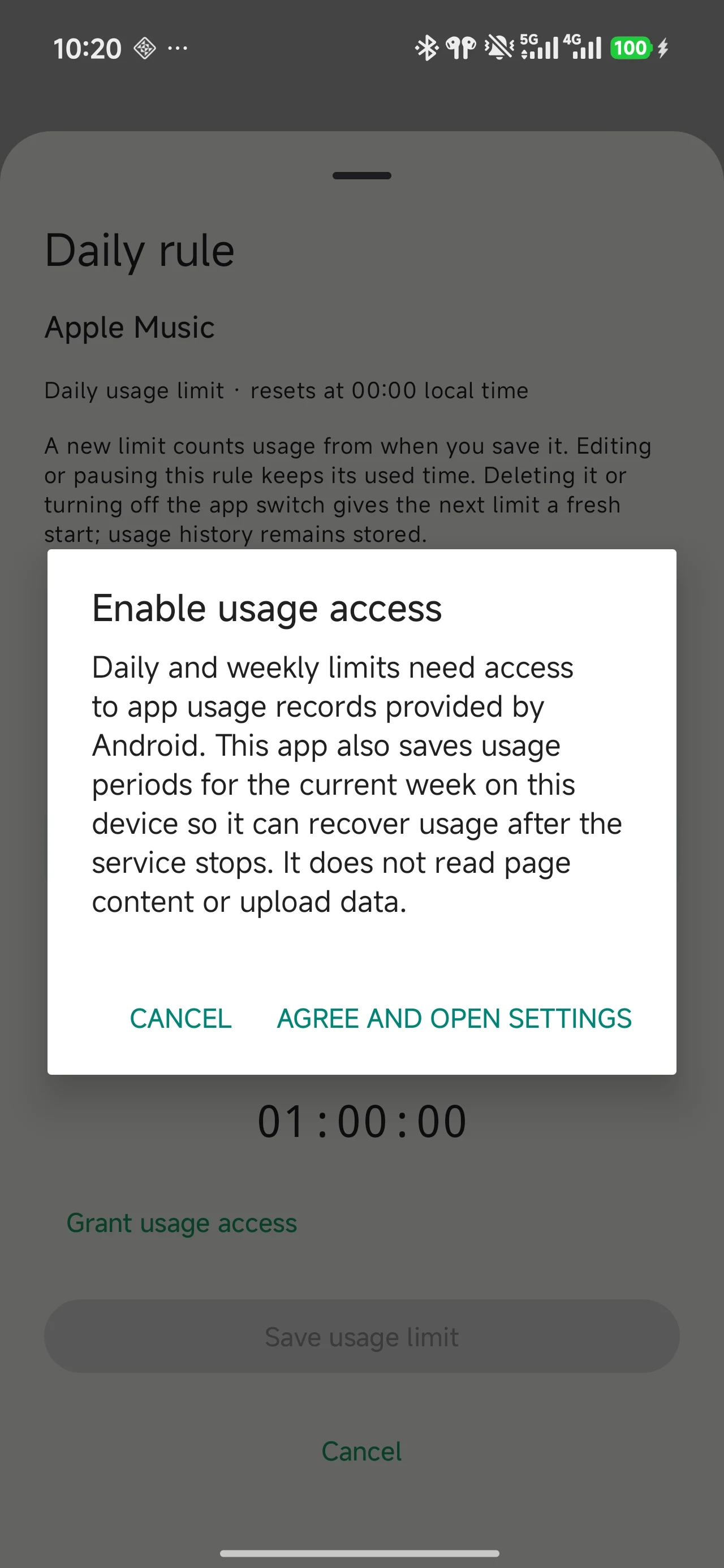
  2. Read the explanation and continue to system Settings.
  3. Find AppLimiter, allow usage access, then return to save your rule.

Complete this step when you are ready to use daily or weekly allowances.

1. Tap the access prompt in the rule screen
1. Tap the access prompt in the rule screenView full screenshot ↗
2. Read the explanation and grant access
2. Read the explanation and grant accessView full screenshot ↗

Before you leave Settings

This is a personal checklist. This page cannot check your phone’s permission settings.

Start with one rule

Choose a pace that fits.

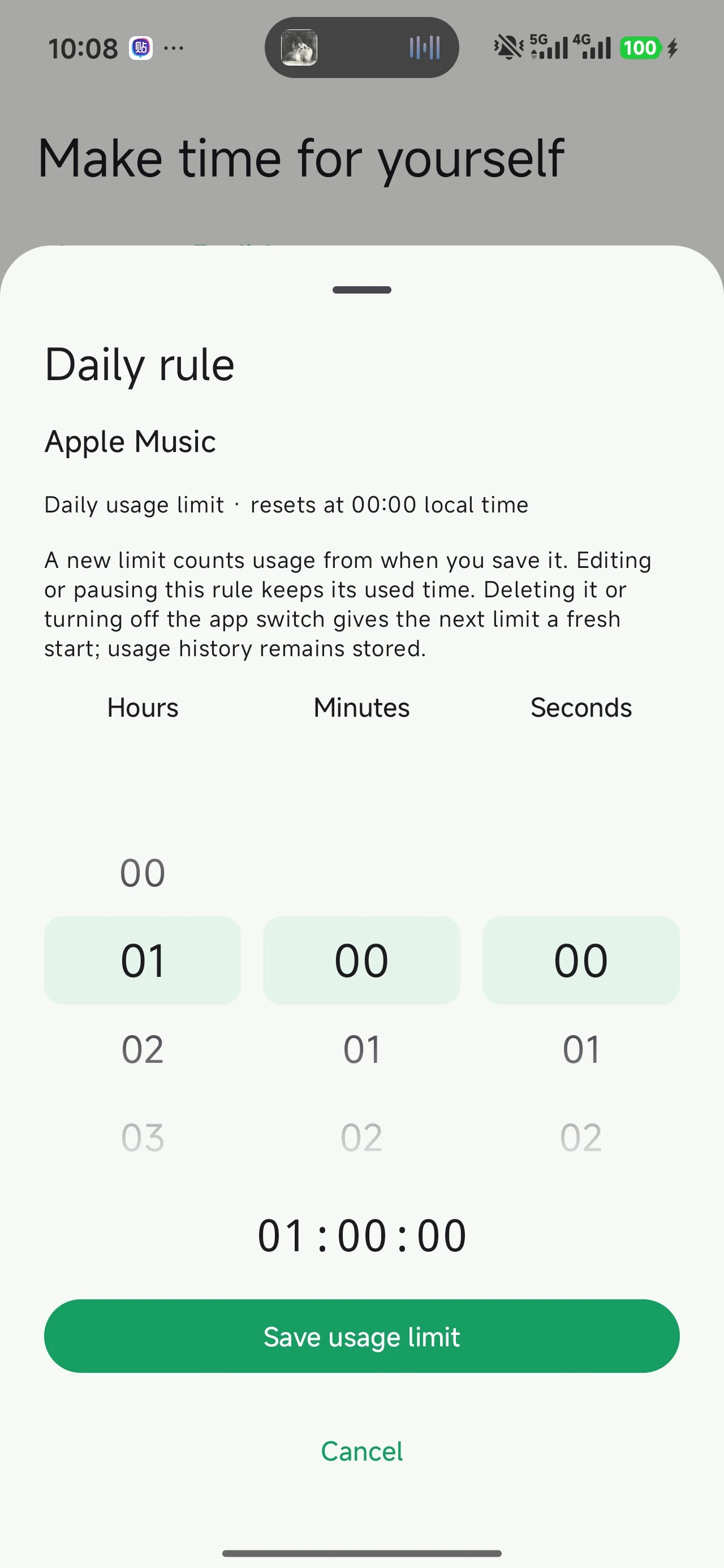
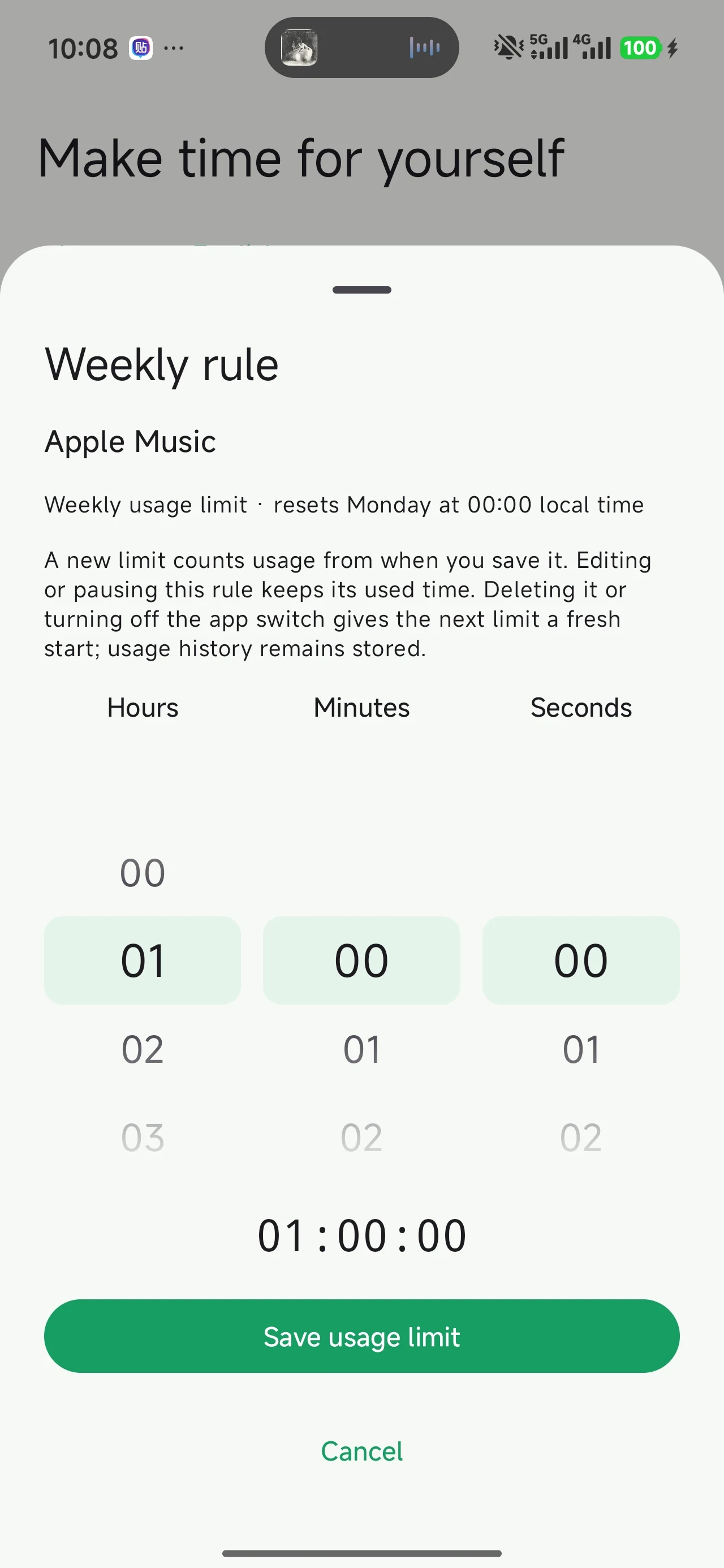
Choose an app on the home screen to set a rule. For an app already added, double-tap its icon to view its rules and choose a type.

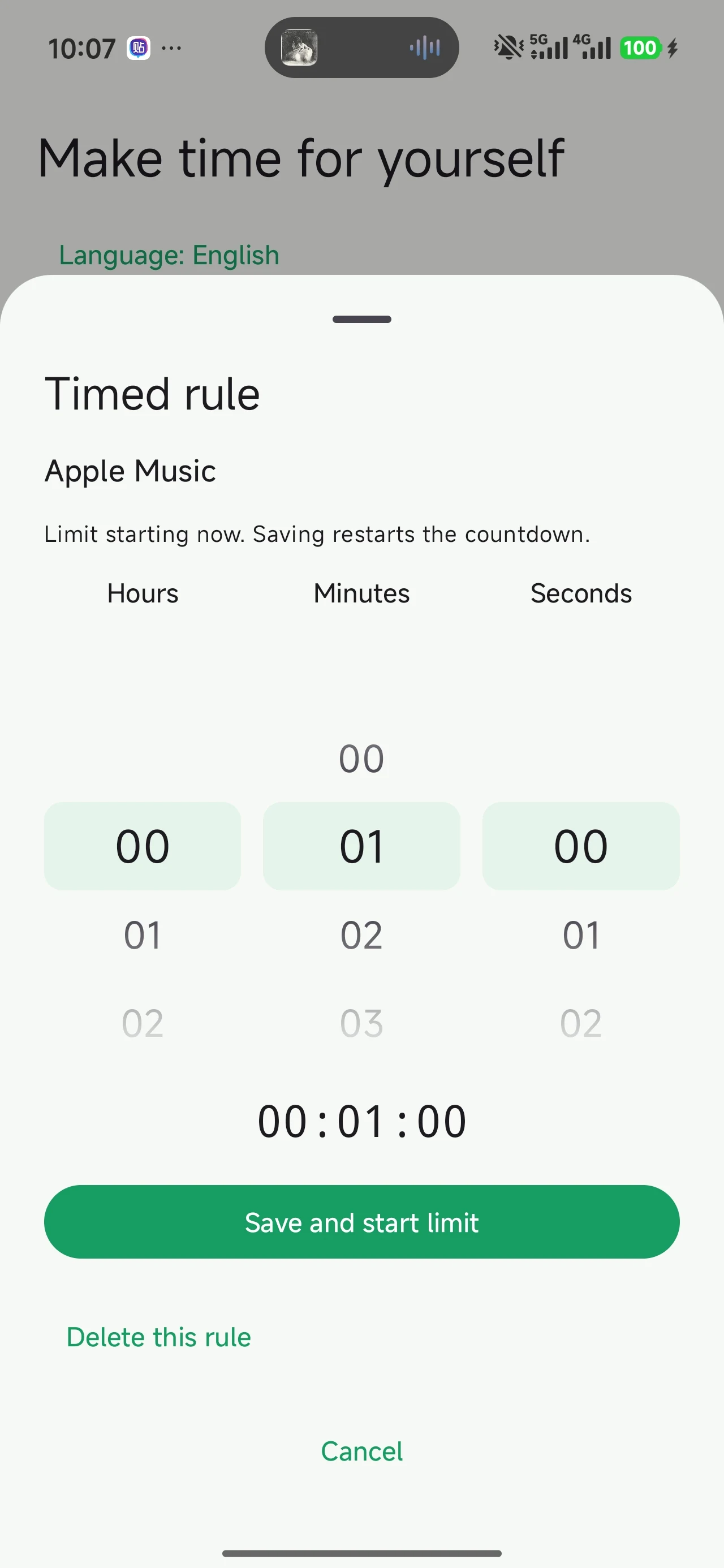
Take a break from an app, starting now.

Adjust the hours, minutes, and seconds to choose how long to block the app, then save the rule.

Try a 30-minute break while you focus on a task.

Timed limit · Adjust the time wheels, then save
Timed limit · Adjust the time wheels, then saveView full screenshot ↗
A quick check-in

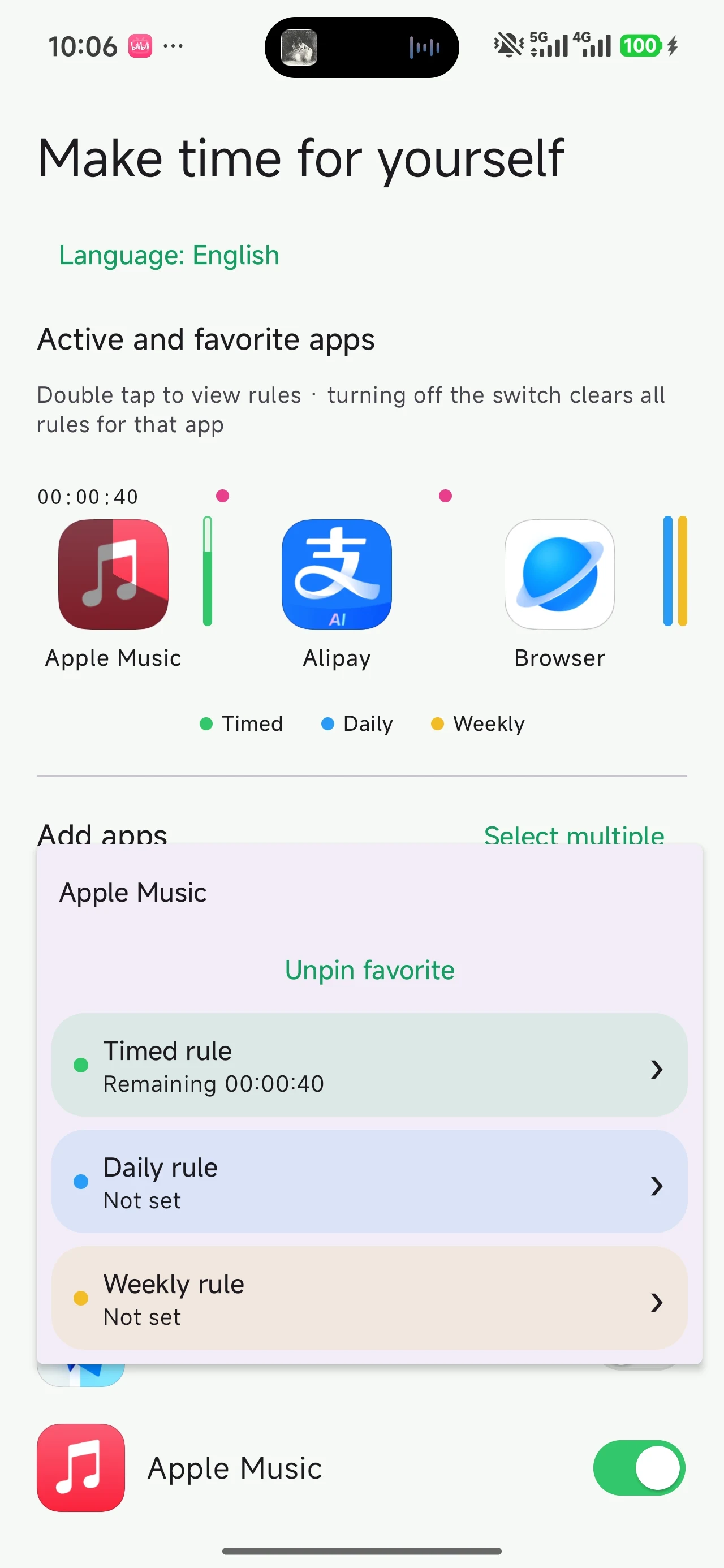
See your limits at a glance.

Timed limit

Daily allowance

Weekly allowance

Colored bars beside each icon show the remaining allowance. Double-tap the icon to view and adjust that app’s rules.

Turning off an app’s main switch clears all its rules. To temporarily disable just one rule, open that rule’s screen instead.

Double-tap an app icon to view its rules
Double-tap an app icon to view its rulesView full screenshot ↗
Need a hand?

Start here.

My rule is not taking effect

Check that the rule is saved and enabled, then check that the accessibility service is on.

Check accessibility setup →
Monitoring becomes unreliable over time

Check whether your phone is restricting background activity and confirm that accessibility is still enabled.

Check background settings →
Daily or weekly rules ask for permission

Grant usage access, then return to the app to save the rule.

Check usage access setup →
My Settings screen looks different

The screenshots show one device. Follow your phone’s prompts to find the accessibility, battery, or usage access settings for this app.

Ready? Start with one app.

Set a small boundary. Make a little more time for yourself.

Go to downloads →